How to Change Registered Email of Your eFaas Account
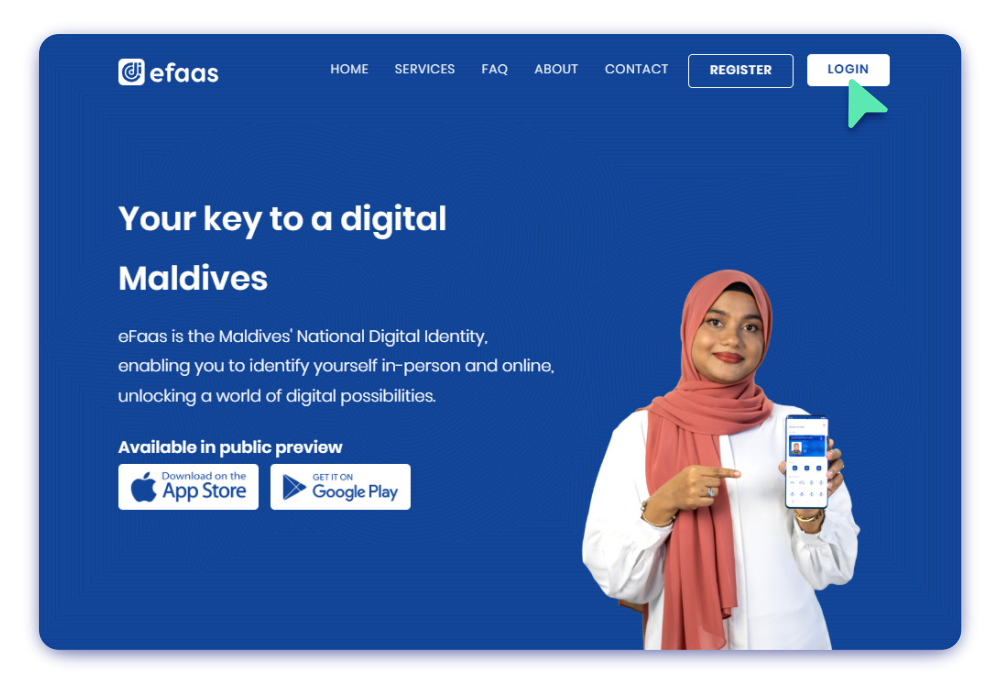
Step 1
To log in to eFaas, visit the website by navigating to efaas.gov.mv and click the LOGIN Button
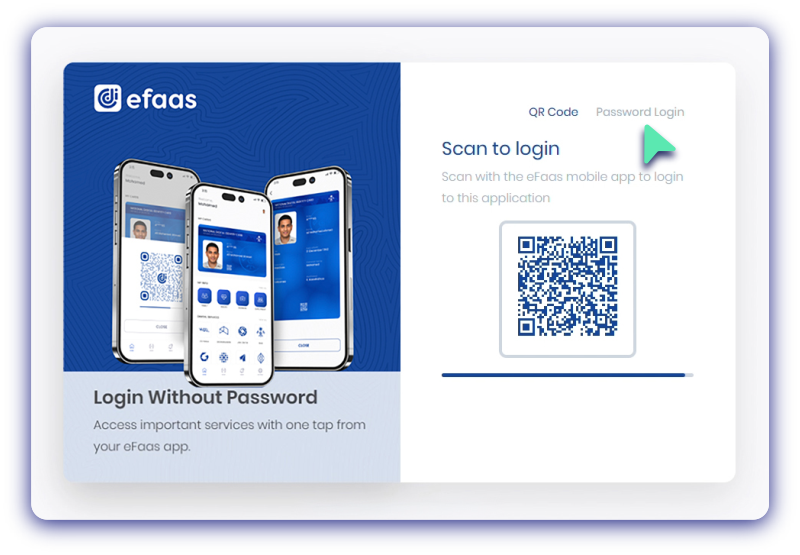
Step 2
Log in by scanning QR code using the eFaas Mobile App or choose Password Login
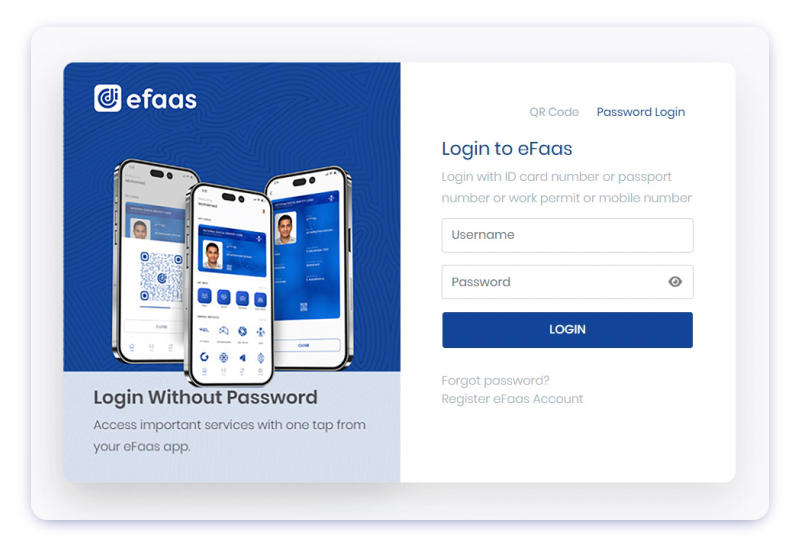
Step 3
Enter your Username
(ID Card Number/Passport Number/Word Permit Number)
and Password, then click LOGIN
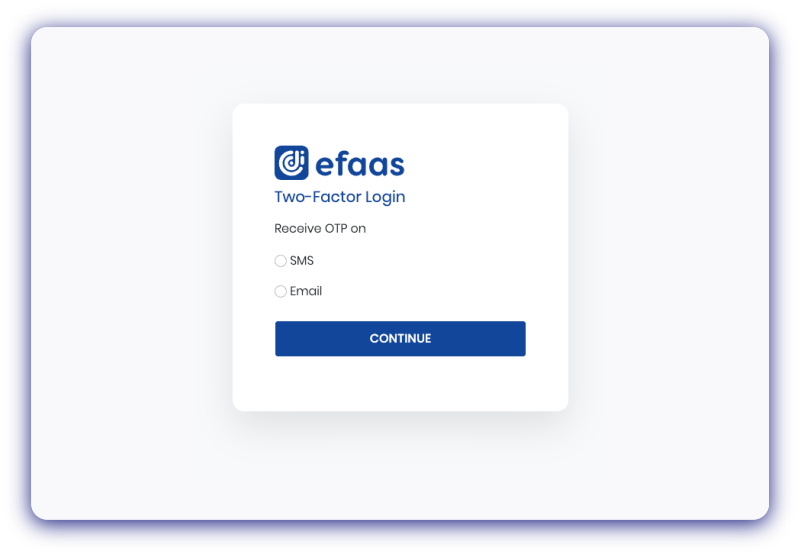
Step 4
Select your preferred authentication method and click Continue
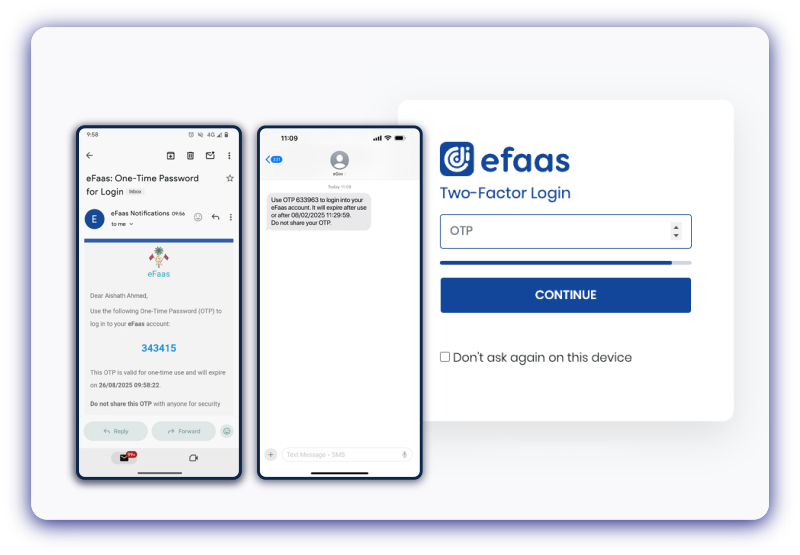
Step 5
Enter the OTP and click Continue button
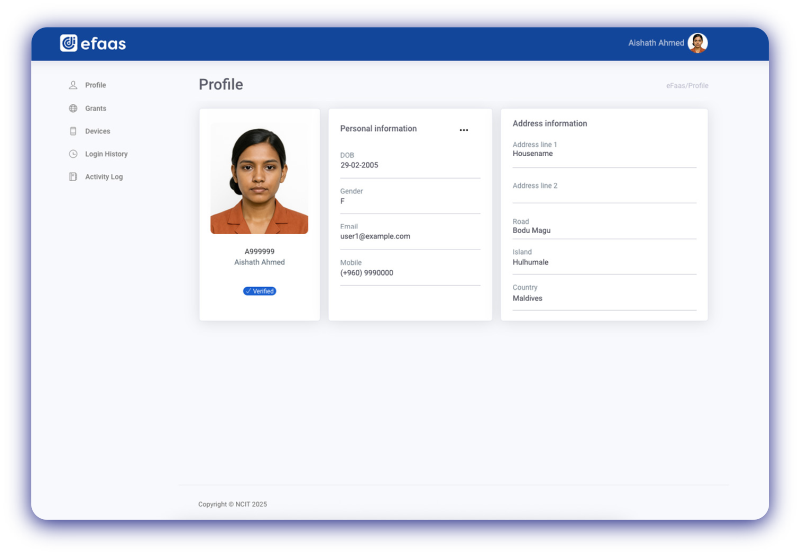
Step 6
Once you click Continue, you will see your eFaas profile
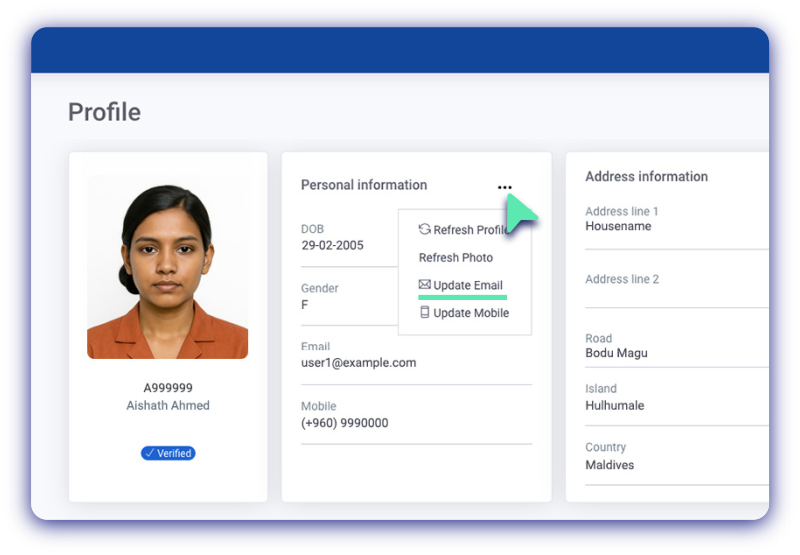
Step 7
Click ... symbol next to Personal Information,then choose Update Email from the dropdown
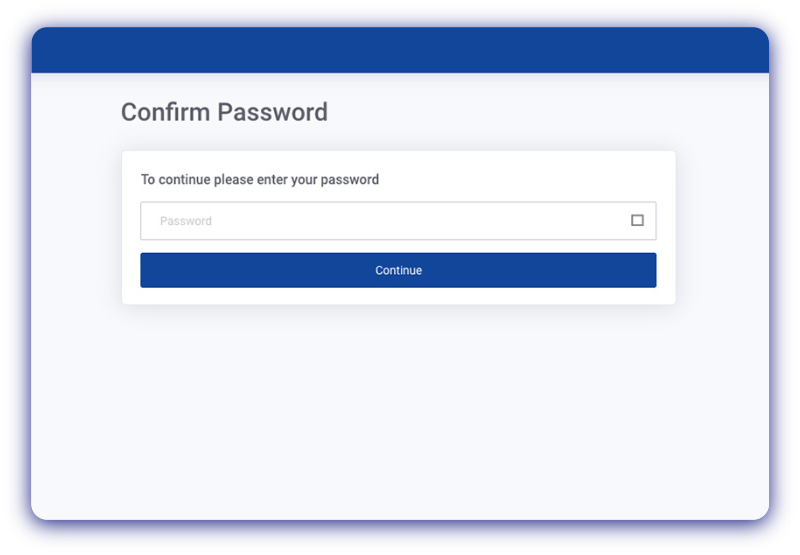
Step 8
Re-enter the Password and click Continue
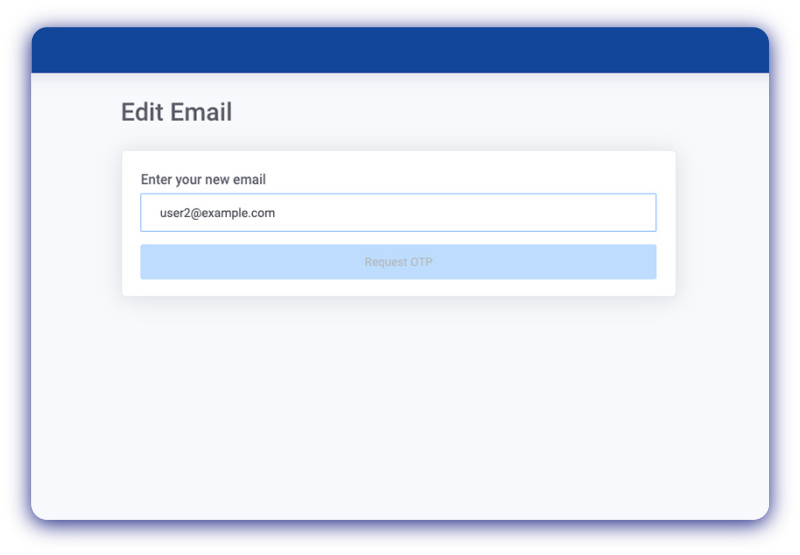
Step 9
Enter your New Email and click Request OTP
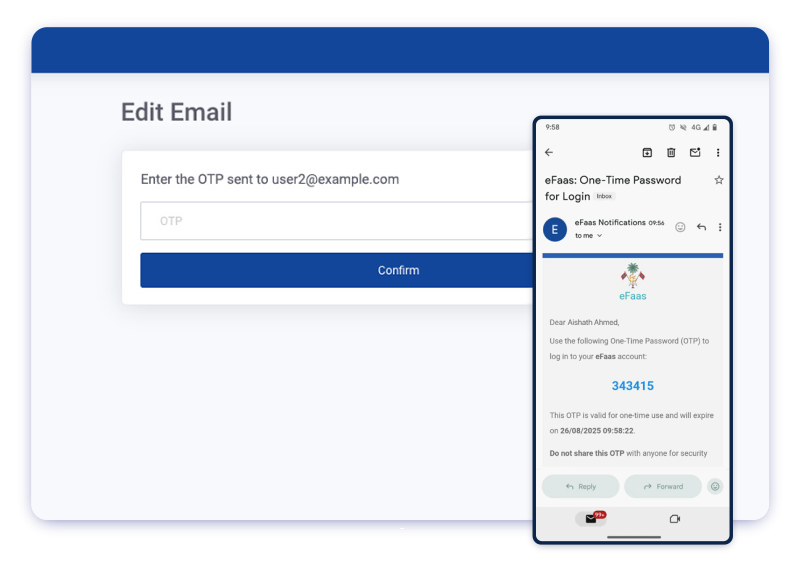
Step 10
Enter the OTP code sent to your New Email and click Confirm
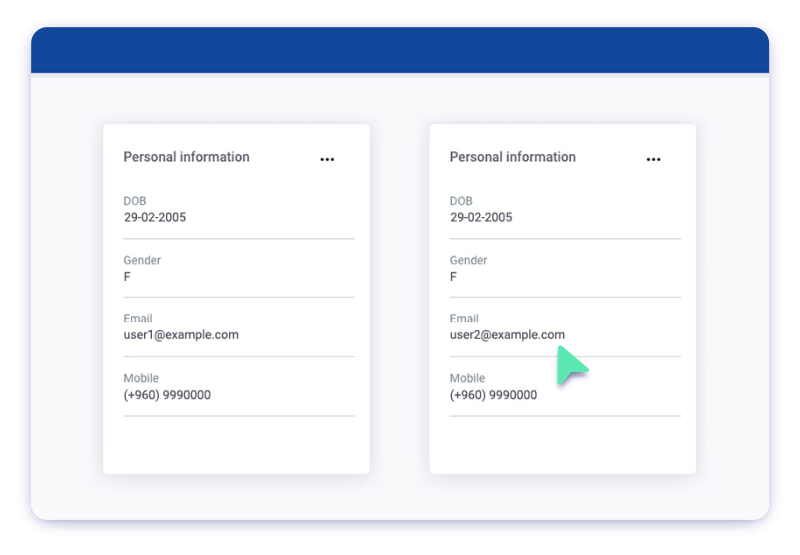
Step 11
Once you click Confirm the registered email will be changed